
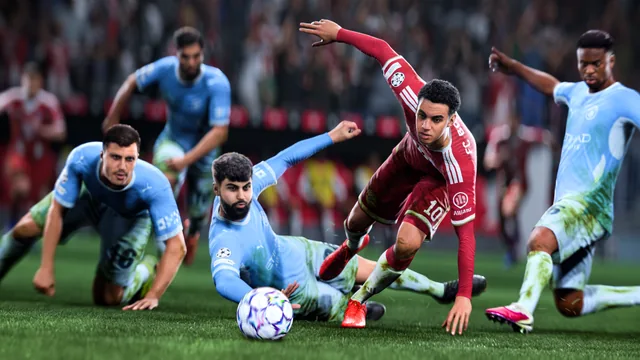
During an EA SPORTS FC 27 match in Ultimate Team or Clubs, the referee wears a kit that looks almost identical to one of the two teams? You mistake them for a teammate or an opponent and pass the ball to them by accident? EA has acknowledged this issue. Title Update 1.1.0 only partly fixed it. Until a complete fix arrives, EA offers an official workaround: High Contrast Mode, which lets you choose the referee's colour yourself. This guide explains how to turn it on and set it up without ending up with a black-and-white pitch.
What EA has acknowledged
| Date | Official information |
|---|---|
| Title Update 1.1.0 notes | EA says it addressed an issue where, in some cases, referee kit colours could be too similar to those of the teams. |
| 28 October 2026 | The official EASFCDirect account explains that this change did not fully resolve the issue and that EA's teams are still looking into it. |
| EA tracker board (Trello) | The card "Referee kit colours are too visually similar to team kits" is marked "Investigating", for all platforms, in Ultimate Team and Clubs. |
This is a game issue acknowledged by EA, not a fault with your PC or console. The only workaround EA gives is an in-game setting: there is no need to reinstall FC 27 or change your graphics driver for this issue.
Observe before acting
| What you see | What to do |
|---|---|
| The referee looks like one of the teams in some matches only | Step 1: turn on High Contrast Mode and choose the referee's colour |
| After turning it on, the pitch is grey | Step 2: set the pitch saturation before the match |
| Players from the two teams become hard to tell apart | Step 3: set the team and goalkeeper colours |
| You mostly mix up your own teammates | Step 4: customise the player indicators |
Step 1: turn on High Contrast Mode and change the referee's colour
When to use it: the referee is too close to a team's colour and you want to make them instantly recognisable.
Expected result: the referee appears in the chosen colour and stands out from both teams.
The exact menu names may vary slightly depending on the game language: EA describes these options from the English version. On its Trello card, EA also gives the path Accessibility Settings then High Contrast / Gameplay.
Step 2: avoid a black-and-white pitch
When to use it: after turning on High Contrast Mode, the pitch is displayed in grey.
This is the mode's default behaviour, not a new bug. According to EA's accessibility page, the Pitch Saturation option can be set between 0 and 1. The default value is 0, which shows the pitch entirely in greyscale.
Expected result: the pitch gets its colours back, and the referee keeps their custom colour.
Warning: EA states that this setting cannot be changed from the pause menu. Set it before entering a match.
Step 3: adjust how the teams look
When to use it: with High Contrast Mode on, the players' appearance has changed and you want to adapt it.
High Contrast Mode does not only change the referee. By default, the Shader Visual option is set to Cloth Only: a high contrast shader is applied to the players' kits. With Full Body, the shader is applied to the players' entire figure.
Expected result: each group (two teams, two goalkeepers, referee) has its own colour, whatever kit the players have chosen.
Step 4: tell your teammates apart with player indicators
When to use it: besides the referee, you struggle to spot your own players, for example in Clubs.
Expected result: the indicator above each controlled player takes the chosen colour.
This step does not change the referee's kit. It complements step 1 if the overall readability of the match bothers you.
Special cases and rolling back
| Situation | What you need to know |
|---|---|
| You don't like how High Contrast Mode looks | Turn off High Contrast Mode in the same menu. The game returns to the normal display, and the referee goes back to their original kit. |
| A new game update is released | Check its release notes and EA's Trello card: if the complete fix is announced, you can turn High Contrast Mode off. |
| You can't find the option | The menu may differ depending on the language. Use the Accessibility filter in the settings menu, or temporarily switch the game to English to find the names EA uses. |
| You run into another FC 27 bug | See Bug sur EA SPORTS FC 27 : vérifier s'il est déjà connu et le signaler à EA. |
Final check
- ☐ High Contrast Mode is on.
- ☐ The referee's colour is different from both teams and the goalkeepers.
- ☐ Pitch saturation was set before the match if you don't want a grey pitch.
- ☐ A test match confirms that the referee is easy to spot.
Sources
- EA: EA SPORTS FC 27 | Title Update v1.1.0 (General, Audio, and Visual section)
- EA, official EASFCDirect account: Post from 28 October 2026 about referee kit colours
- EA: Trello card "Referee kit colours are too visually similar to team kits" on the EA SPORTS FC Tracker board
- EA: EA SPORTS FC 27 Accessibility Resources (Visual section)
Still having the problem?
Reply in this topic with your platform (PC, PlayStation or Xbox), the game mode (Ultimate Team, Clubs or other), the game version shown in the settings, the kit colours of both teams and what happens after turning on High Contrast Mode. Never post your EA ID, email address or password.