
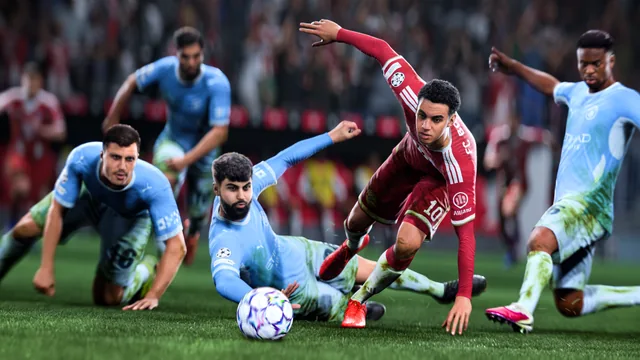
When defending in EA SPORTS FC 27, does the game switch you to the wrong player, switch at the worst moment or, on the contrary, leave you on a defender far from the ball? Player switching depends on several assist settings detailed by EA, and on a behavior the development team has announced it will fix in the v1.2.0 update. This guide helps you sort out which is which and set up switching to suit the way you play.
What to know before acting
- An issue acknowledged by EA: in its October 2026 developer notes, EA says it has observed situations where auto switching does not select the player closest to the ball, notably after a teammate completes a slide tackle, following a headed pass and after a shot misses the target. Targeted fixes are announced for the v1.2.0 update, planned for mid-November.
- Manual switching is encouraged: according to EA, in FC 27 a manually controlled defender reaches further than an AI-controlled defender for interceptions. Switching yourself at the right moment is therefore rewarded.
- Official settings: EA's accessibility page details the player switching assist options (Switching Assists): Auto Switching, Auto Switching Move Assistance, Right Stick Switching, Right Stick Switching Reference, Right Stick Switching Sensitivity, Next Player Switching, Reaction Time Calibration and Player Lock.
- Labels: EA publishes these names in English. Their exact wording in other in-game languages is not confirmed: look for the closest match in the gameplay settings.
- Online: EA states that the Competitive preset applies to offline play the settings that are mandatory for all players in online multiplayer modes. Some settings may therefore be imposed online; EA does not say which ones for switching.
Step 1: install the game updates
When to use it: the game picks the wrong player right after a slide tackle, a headed pass or a missed shot.
Expected result: once v1.2.0 is released and installed, auto switching should be more consistent in these situations, according to EA.
When to stop: until v1.2.0 is out, these specific cases are a known issue. The following steps reduce the annoyance in the meantime.
Step 2: choose when the game switches players on its own
When to use it: automatic switches make you lose control at the wrong moment.
Expected result: the game only switches players in the situations you have chosen.
Rollback: the Authentic preset returns the assists to their default setup, according to EA.
Step 3: set up right stick switching
When to use it: you play with a controller and the right stick does not select the player you are aiming for.
Expected result: the right stick takes you to the player you are aiming for.
Step 4: set up switching with the LB / L1 button
When to use it: the next player switch button (LB / L1 on the controller) picks a badly positioned player.
Expected result: the indicator shows the expected player and pressing the button takes you there.
Step 5: lock onto your player
When to use it: you want to stay on the same player despite automatic switches.
Expected result: no automatic switch takes this player away from you.
When to stop: when defending, staying locked deprives you of useful switches. Keep this setting for situations where you need it.
Special cases
| Situation | What to know |
|---|---|
| Keyboard and mouse on PC | EA states that Competitive online modes cannot be played with mouse and keyboard. The Right Stick and Next Player settings described by EA apply to controllers. |
| Defending still feels too hard despite good switching | See Defending too hard in EA SPORTS FC 27: mastering manual defending. |
| Fullbacks dropping too deep and keeping opposing attackers onside | EA also announces for v1.2.0 better fullback positioning and a higher defensive line after kick-off. This is not related to your switching settings. |
| Setting not found | The names come from EA's accessibility page, in English. Use the Accessibility filter in the settings menu, announced by EA, to shorten the list. |
Final check
- ☐ The game is up to date (v1.2.0 as soon as it is available).
- ☐ Auto Switching matches the situations where you accept an automatic switch.
- ☐ The right stick and LB / L1 button settings have been tested in an offline match.
- ☐ Player Lock is off if you do not need it.
Sources
- EA: FC 27 October Gameplay Developer Notes (October 28, 2026, "Loose Ball Switching Improvements" section, v1.2.0 update in mid-November); announcement on Steam
- EA Accessibility: EA SPORTS FC 27 resources ("Switching Assists" and "Gameplay Type Presets" sections, North American English version)
- EA: Pitch Notes, EA SPORTS FC 27 gameplay deep dive (reach of manually controlled defenders)
Still having the problem?
Reply in this topic with your platform, your input device (controller or keyboard and mouse), the game mode, the game version, your Auto Switching and Next Player Switching settings, and the situation where the wrong player is selected. Never post your email address, your EA ID or your password.